
Frequently Asked Questions
How do I disable automatic updates in Mail Designer?
We recommend keeping automatic updates enabled in Mail Designer. Updates can include important bug fixes, compatibility improvements, and security-relevant changes that help keep Mail Designer reliable and protected.
If you still want to disable automatic updates, open Mail Designer and choose Mail Designer 365 > Settings... from the menu bar. Then open the Updates tab and remove the checkmark next to Automatically download and install updates.
After disabling this option, updates will no longer be downloaded automatically and installed when you quit the app. You can still check for updates manually at any time by choosing Mail Designer 365 > Check for Updates... from the menu bar.

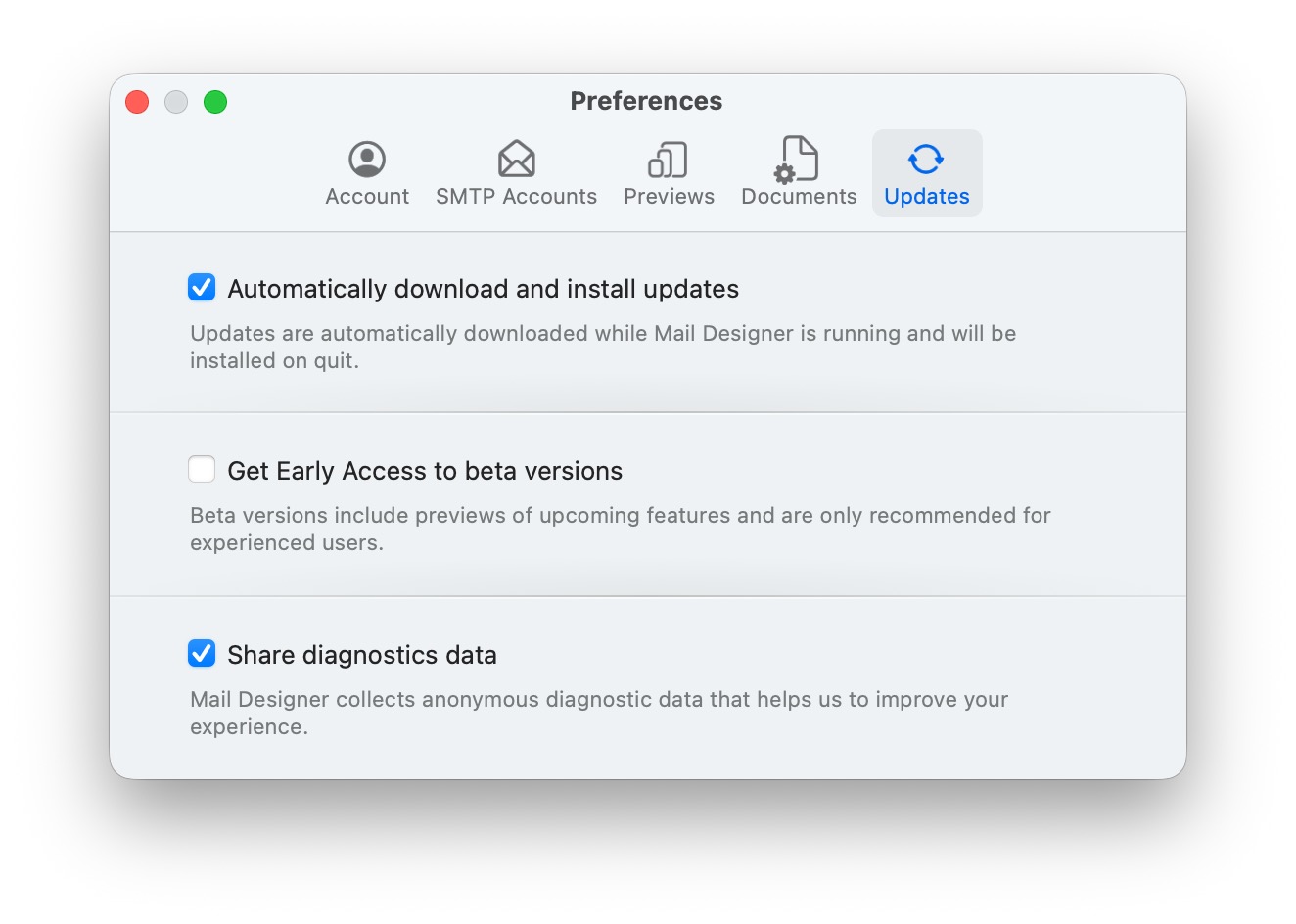
If you still want to disable automatic updates, open Mail Designer and choose Mail Designer 365 > Settings... from the menu bar. Then open the Updates tab and remove the checkmark next to Automatically download and install updates.
After disabling this option, updates will no longer be downloaded automatically and installed when you quit the app. You can still check for updates manually at any time by choosing Mail Designer 365 > Check for Updates... from the menu bar.